
KontexVoX Help
Choose the task you need help with. The ? buttons in KontexVoX also explain the screen you are using: this online guide complements those tips.
This guide covers the KontexVoX iPhone app, version 1.1.1.
Screenshots are illustrated examples with fictional data. The numbered red markers match the explanations below each image.
Take and describe
Capture: take a photo, then describe it
- Choose Capture and take a photo. Dictation starts automatically.
- Describe what you see. When you finish speaking, tap Stop.
- Review the text. Tap it to correct a word.
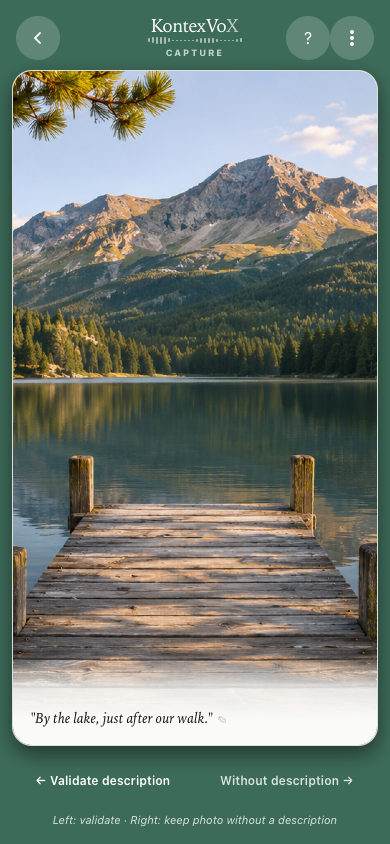
- Validate description, or swipe the photo left, keeps the description in your session. It does not create the described copy in Photos yet.
- Continue with your other photos.
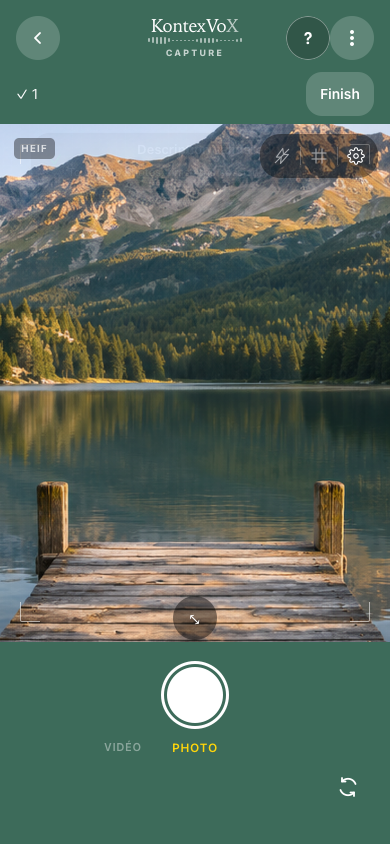
- Finish opens the summary. Check your descriptions, then tap Save to Photos: described copies are created at that stage.
To keep a photo without a description, tap Without description or swipe right. This saves that photo directly to Photos, separately from saving your described photos at the end.
Format (HEIF or JPEG), grid and level, and the timer (3 or 10 seconds) are in Capture settings.
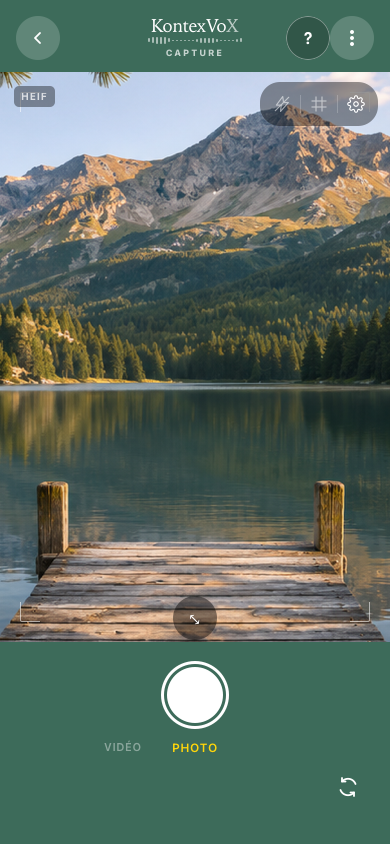
Capture: take a photo
- 1Take a photo with the shutter. Dictation then starts automatically.
- 2The ? button explains this screen.
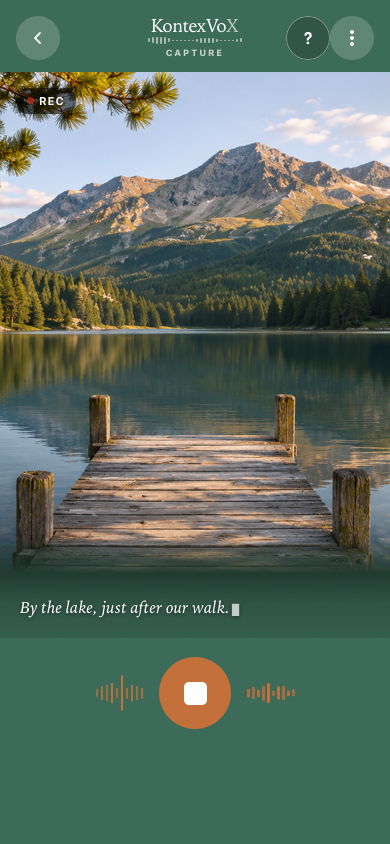
Capture: dictate, then stop
- 1Describe the photo, then tap STOP to review the text.
Capture: review and validate
- 1Tap the text to correct it.
- 2Swipe the photo left to validate the description in the session. The Photos copy is created at final saving.
- 3Swipe right to save this photo directly to Photos without a description.
Capture: finish the session
- 1The photo is validated in the session. Finish opens the summary; the described Photos copy has not been created yet.
The summary and saving are shown further down: Capture: check the summary.
Classic: describe existing photos
- Choose Classic, then Choose photos to select the ones to describe.
- Describe each photo. The microphone button pauses or resumes dictation; you can also edit the text with the keyboard.
- Swipe left for the next photo and right for the previous one. The Next and Previous buttons do the same.
- Add photos appends to the current session.
- Check the summary, then tap Save: described copies are created at that stage.
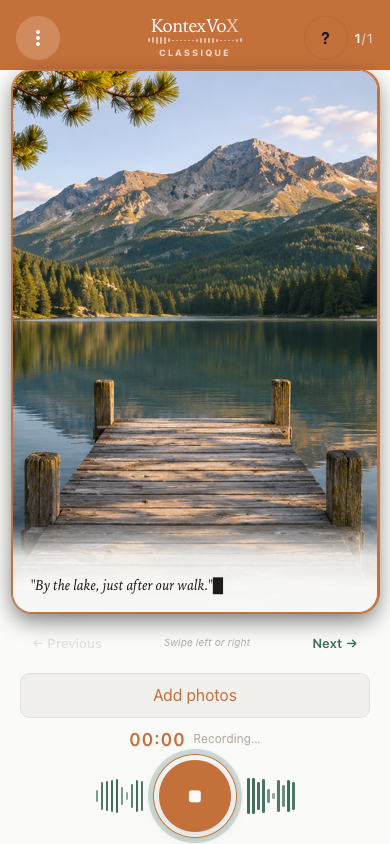
Classic: describe a photo
- 1The microphone button lets you stop or resume dictation.
- 2The photo description appears here. Stop dictation before correcting the text.
- 3Swipe left for the next photo, right for the previous one, or use the arrows.
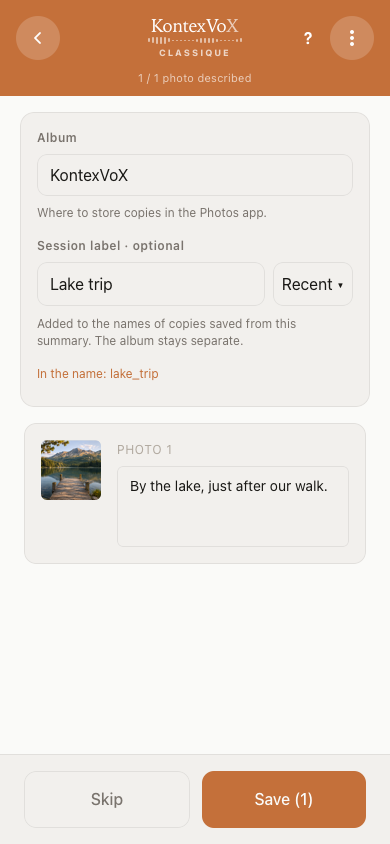
Classic: check the summary
- 1Album: where copies are stored in Photos, subject to permission.
- 2Optional label: adds to the names of the next copies. It is separate from the album.
- 3Recent offers up to ten previously used labels, shared between both modes. None is chosen automatically.
- 4Save creates the described copies in Photos. Review the text first.
Pause your work and return
Finish dictation before leaving a screen, and check that the text you expect is visible.
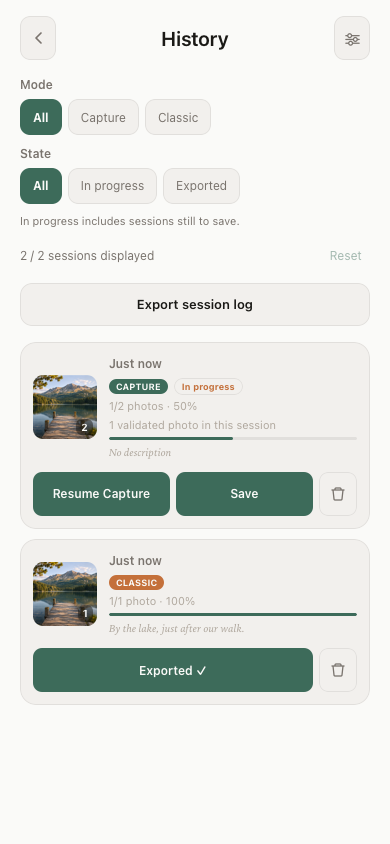
To find unfinished work, open History, then tap the action offered for its mode: Resume Capture or Resume.
An Exported ✓ session is a result you can view: it does not restart Capture.
If a session doesn’t look the way you expected, don’t delete it: email me first.
In pictures: finishing a Capture session and History.
Save, find, export
Album and optional label
In the summary, Album chooses where copies are organized in Photos, when your permission allows it. By default, the album is called KontexVoX.
The Optional label adds to the copies’ filenames, for example “Apartment 412”. It is used for the filename, not for the description.
Your ten most recently used labels are offered, in Capture and in Classic. None is selected automatically.
Changing the label does not rename copies already created. After a partial save, the new label applies to subsequent copies.
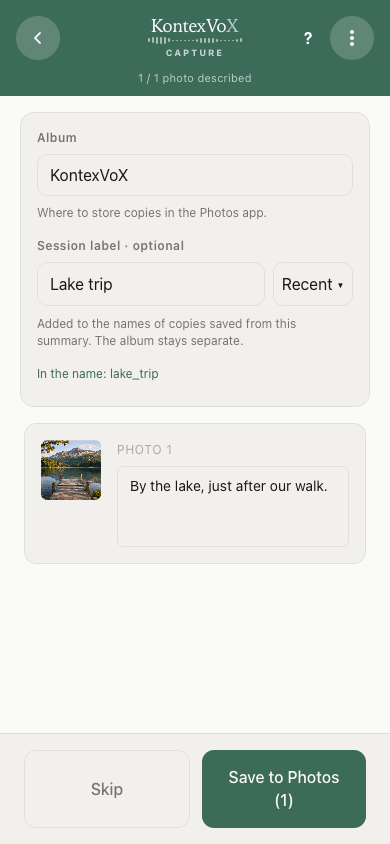
Capture: check the summary
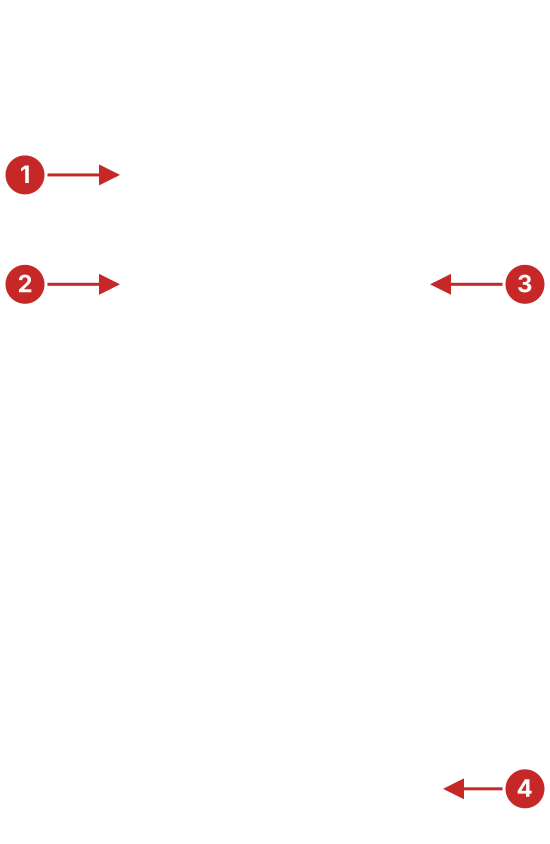
- 1Album: where copies are stored in Photos, subject to permission.
- 2Optional label: adds to the names of the next copies. It is separate from the album.
- 3Recent offers up to ten previously used labels, shared between both modes. None is chosen automatically.
- 4Review the descriptions, then Save creates the described copies in Photos.
Session complete: find your copies
After saving, the Session complete screen offers Open Photos. This button opens the Photos app; it does not go straight to a particular photo or album.
- With full Photos access, your copies are in your chosen album.
- With limited access, look in Recents: placement in a custom album is not guaranteed.
Check your copies before deleting any originals.
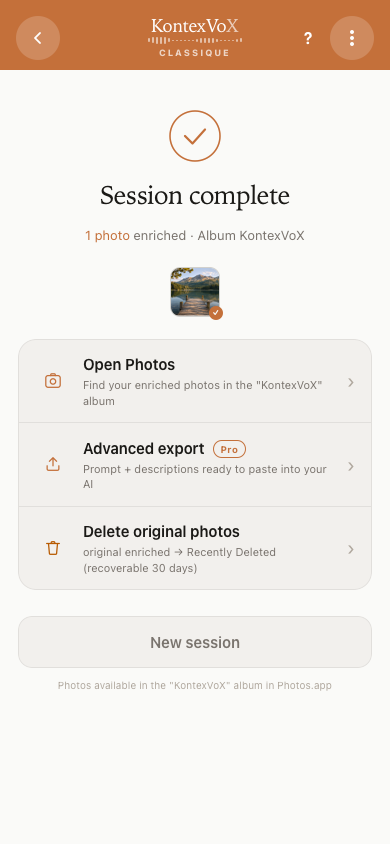
Session complete: choose what comes next
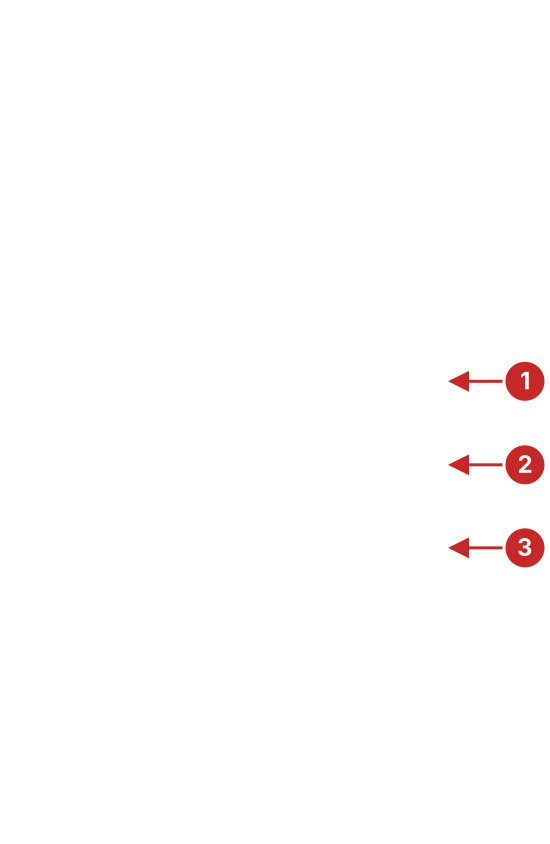
- 1Open Photos opens the Photos app, without automatically selecting an album or photo.
- 2Advanced export prepares text or a ZIP from this session, subject to your Export Pro access.
- 3In Classic, deleting originals is optional and requires confirmation. Check the enriched copies before deleting anything.
Avoid duplicates in Classic
Saving creates described copies. Your originals stay separate, so each photo now exists in two versions.
If Delete original photos is offered, it is optional and requires confirmation. It targets the selected originals and keeps the enriched copies.
Read the result shown. It covers that attempt only and may be partial; another attempt does not add previous counts.
If the action is not offered, check your copies, then manage the originals yourself in Photos.
On the Session complete screenshot, this action is marker 3.
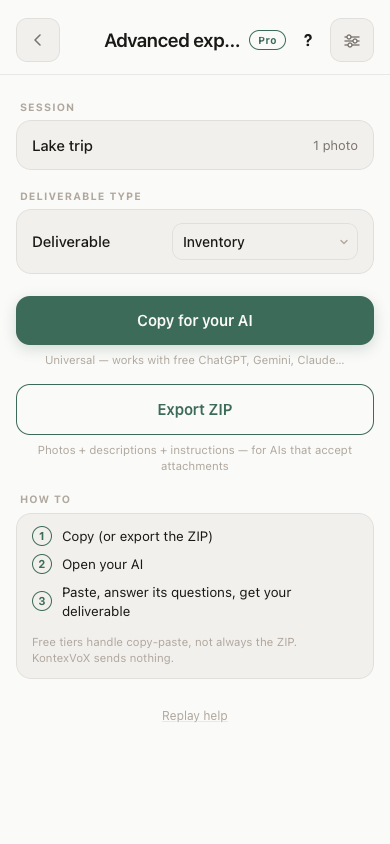
Advanced export: copy text or prepare a ZIP
From Session complete, Advanced export uses the described photos from that session. From Settings, it uses the local KontexVoX Library, not your entire photo library.
Access depends on your Export Pro rights; a purchase may be offered.
- Copy for your AI puts the instructions and descriptions on the clipboard. Paste them into the tool you choose. This copy sends no photos.
- Export ZIP prepares photos, descriptions and instructions for you to share yourself.
Read the result after exporting: some images may be previews, and some photos may be missing.
Advanced export: text or ZIP
- 1Copy for your AI puts instructions and descriptions on the clipboard. This action does not send any photo.
- 2Export ZIP prepares a package for you to share. Read its summary: previews or missing photos may be reported.
Share without losing the description
WhatsApp, Instagram and most messaging apps strip metadata when they send an image, and the description goes with it. Use AirDrop, an email attachment or the Files app instead. The method: share without losing EXIF.
Export ZIP prepares a package that you share yourself; nothing is sent automatically: see Advanced export: text or ZIP.
Troubleshooting
My description doesn’t show on the photo
Check that you are looking at the enriched copy, not the original: KontexVoX never modifies your originals. The copy is in your chosen album (KontexVoX by default), or in Recents with limited access. The complete method: check that your photos are enriched.
To review the description before saving: Capture: review and validate and Classic: check the summary.
A preview is unavailable, or saving failed
A missing preview does not prove your photo is lost: the preview and the photo file are separate.
Follow the message shown. The app may find the file, find that it is missing at the saved location, or be unable to check it. A file being present does not guarantee it can be read or saved. Try again repeats the stated check or action; it does not recreate a missing original.
If the app clearly reports that Photos access is denied, review KontexVoX’s Photos permission in Settings, then try again. Limited access alone does not prove that a particular photo is inaccessible.
For a photo selected from Photos, check that it opens there. A photo stored in iCloud is only a possible explanation when the message and the situation point that way. A local Capture file error is not necessarily resolved by iCloud or a Photos permission.
Good to know: until the issue is solved, keep the text that matters to you in sight. If in doubt, copy it before leaving the screen.
The transcription makes mistakes
Speech recognition runs entirely on your iPhone: that’s the trade-off for privacy, and it improves with each iOS version. Tap the text to correct a word with the keyboard. Best practices: optimize a session.
Where to tap to correct: marker 1 in Capture: review and validate.
I reached my daily quota
Classic mode is limited to 15 photos per day without an account, 30 with a free account, and unlimited on Premium. The quota resets every day. Plan details, Capture mode included: pricing.
An exported session disappeared from History
Completed and exported sessions remain in the app’s History temporarily, for about 24 hours after export. This expiration does not delete copies already saved in Photos.
It also does not mean that unfinished sessions are deleted after 24 hours.
History: filters and session log
- 1Mode filters Capture, Classic, or all modes.
- 2State separates in-progress and exported sessions. In progress includes sessions that still need saving.
- 3Export session log prepares a record of the History that is still present. This is separate from the photo ZIP.
Account
Forgot your password
- From email sign-in, tap Forgot password?
- Check your email address, then request a link.
- An accepted request does not guarantee delivery: check your junk folder too.
- Open the link on the same iPhone and in the same app that made the request, then choose and confirm your new password.
- Once success is confirmed, sign in again if the app asks you to.
An expired, already used or other-device link may require a new request. If you sign in with Apple or Google, this does not apply to you.
Delete my account and data
You can delete your account at any time from the app: Settings → Manage account → Delete account. Your profile and sign-in account are then erased.
If you have a subscription, deleting your account does not cancel it: cancel it in your Apple account settings.
Your photos and their descriptions stay on your device, in your photo library. Details: privacy policy.
More help
Email me, a real person (me) replies within 48 hours:
support@kontexvox.comTo speed things up, include the app version, your iPhone model and iOS version, the screen concerned and the message shown. Never send me your password.
Testing the beta? Report a bug or unexpected behaviour.